MiniMonitor
Use your Android phone as a second monitor for your Windows PC.
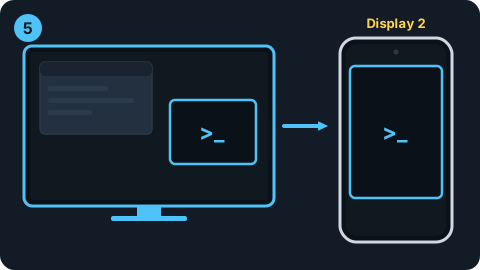
MiniMonitor adds a virtual monitor to your PC and sends its picture to your phone over the same Wi-Fi. Windows sees your phone as "Display 2", so you can drag windows onto it. No cable needed.
Features
Wireless
Connects over the same Wi-Fi. No USB cable and no developer options.
One QR scan
Scan the QR code in the PC program with your phone, once. It reconnects automatically after that.
Encrypted
Everything between phone and PC is encrypted with TLS, and an access code verifies both sides.
Display modes
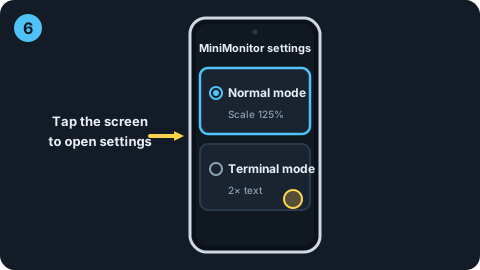
Choose Normal mode, or Terminal mode, which enlarges a terminal window on the small phone screen, in the phone settings.
Hardware encoding
Uses your GPU's hardware encoder when available and falls back to the CPU automatically.
No servers
Video goes straight between your phone and PC. It never passes through the developer's servers.
What you need
- A 64-bit Windows 10/11 PC
- An Android 8.0 (API 26) or newer phone
- The PC and phone on the same Wi-Fi network
- The virtual display driver (installed once on the PC; needs administrator permission)
How to use
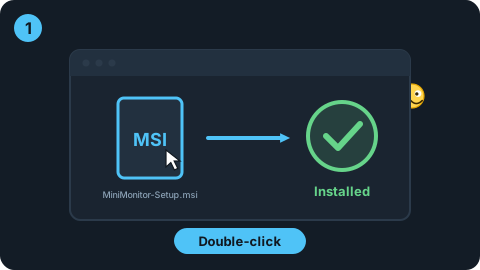
- Install the PC program. Get it from the download page. The virtual display driver is installed at the same time.
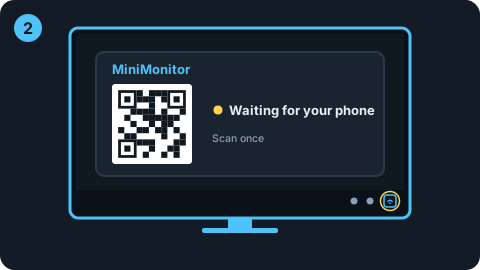
- Run MiniMonitor on the PC. Its window shows a QR code and "Waiting for your phone". If you close the window, it keeps running in the tray at the right end of the taskbar.
- Install the phone app. Get MiniMonitor from Google Play and open it.
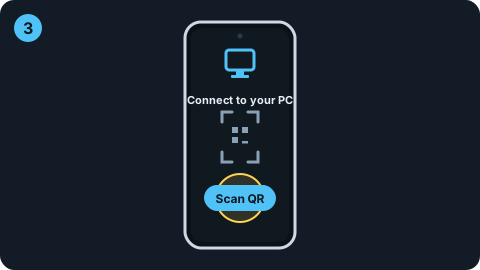
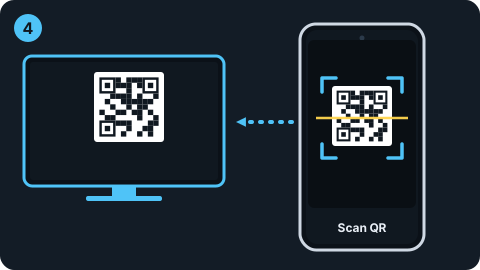
- Scan the QR code. In the phone app, tap "Scan QR" and scan the code in the PC window. You only do this once. The PC screen then appears on your phone.
- Move windows over. In Windows display settings you'll see a new "Display 2". Drag a window onto it and it shows up on your phone.
- Change the display mode. Tap the phone screen to open settings. Pick Normal mode or Terminal mode; your choice is saved on the phone.
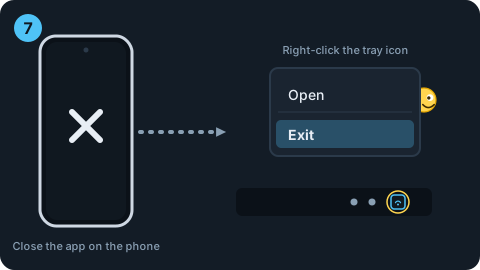
- Disconnect. Close MiniMonitor on the phone. To quit the PC program, right-click its tray icon and choose Exit.
Switching PCs, or when it won't connect
- Connect to a different PC: in the phone app settings choose "Scan QR again (switch to another PC)", then scan that PC's QR code.
- New QR code on the PC: "Create new QR code" in the PC program means phones you connected before must scan again.
- If it won't connect: check that the PC and phone are on the same Wi-Fi, and that Windows Firewall isn't blocking MiniMonitor. Some public Wi-Fi networks block devices from talking to each other.
- "Couldn't find the virtual monitor": the virtual display driver isn't installed.
Standby screen and ads
When no PC video is arriving (waiting to connect, PC turned off, disconnected), the phone shows a standby screen, and a banner ad appears only on that screen. While video is playing, no ads are shown. See the Privacy Policy for details.
If your screen looks wrong
If the display misbehaves while using the virtual monitor, press Win + P and choose "PC screen only". If that doesn't help, press Win + Ctrl + Shift + B to reset the graphics driver. How to remove the driver is described on the download page.